
How to See Reposts on TikTok PC: Full Guide
Learn how to see reposts on TikTok PC for your own or any public profile, fix a missing Reposts tab, and check desktop reposts without logging in.
To see TikTok reposts on a computer, open tiktok.com in Chrome, Edge, Safari, or Firefox, sign in, open your own or another user's public profile, and click the Reposts tab with the two-arrow icon below the bio. If the tab is hidden or you prefer not to sign in, a browser lookup tool can load any public account's repost feed instead. Below, you will learn how to see reposts on TikTok PC step by step, how to check TikTok reposts on PC without logging in, eight fixes for missing tabs, and key privacy limits.
Can You See Reposts on TikTok Web on PC?
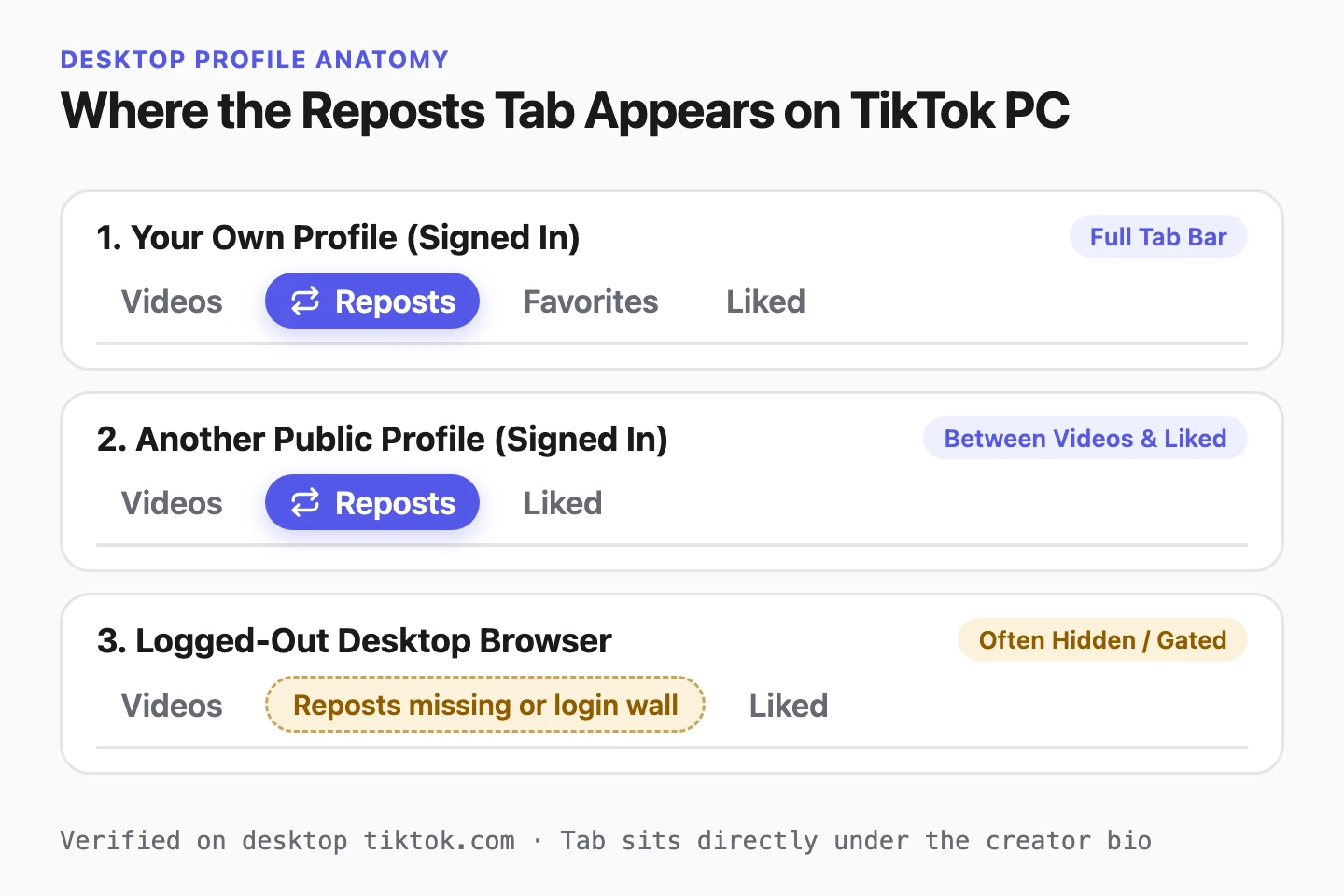
Yes. TikTok's desktop website includes a built-in Reposts tab on profiles, so older tutorials claiming you can only view reposts inside the mobile app are out of date. When you sign in on tiktok.com from Windows, macOS, or Chromebook, the tab bar beneath a creator's bio shows Videos, Reposts, and Liked (plus Favorites on your own page).
People still ask can you not see reposts on TikTok web for two practical reasons:
- Logged-out browsing hides tabs. Visiting
tiktok.comwithout signing in often triggers login pop-ups or simplified layouts that omit the Reposts tab. - Old 2023–2024 guides still rank. Many articles written before TikTok updated its desktop profile layout still tell readers the website lacks a repost feed.
Whether you are checking how to see reposts on TikTok desktop at a workstation or how to see TikTok reposts on laptop browsers, the steps are identical across every major desktop browser.
How to See Reposts on TikTok PC Step by Step
Viewing your own reshared videos and inspecting someone else's public reposts both use the same tab row on tiktok.com.
How to See Your Own Reposts on TikTok PC
Follow these steps to review videos you have reshared, recover a clip from your For You feed, or remove accidental reposts.
Sign in on tiktok.com. Open Chrome, Edge, Safari, or Firefox, go to tiktok.com, and log in to your account.
Open Profile from the left sidebar. Click Profile in the left navigation rail (or click your top-right avatar and choose View profile).
Click the Reposts tab below your bio. Select the two-arrow icon labeled Reposts between Videos and Liked (next to Favorites on your own profile).
Review or undo a repost. Scroll in reverse-chronological order. To remove a clip, open it, click Share, and choose Remove repost.
If you are learning how to see your reposts on TikTok on a new account, the Reposts tab stays empty until you reshare your first video. Once active, the feed syncs automatically whenever you check how to see your reposts on TikTok PC or open the mobile app.
How to Check Someone's Reposts on TikTok PC
You can view another creator's reshared videos on desktop as long as their profile is public and repost visibility is not restricted.
Open the creator's profile URL. Enter tiktok.com/@username in the address bar or search their @handle in TikTok's top search bar.
Verify the @handle and public status. Confirm the exact @username under the display name and verify the profile is public, not private.
Select the Reposts tab under the bio. Click Reposts (the two-arrow icon next to Videos) to load their reshared videos and photo carousels.
Open any clip to view source metrics. Click a tile to inspect the original creator, caption, sound, views, likes, comments, and shares.
That four-step flow covers how to check someone's reposts on TikTok PC while signed in, letting you compare captions and original creators on a wide monitor without juggling apps.
How to View TikTok Reposts on Web Browser Without Logging In
If you want to learn how to view TikTok reposts on web browser screens without connecting your TikTok account, you can either open tiktok.com/@username in an incognito window or use a browser-based public lookup tool.
| Desktop methods for viewing TikTok reposts | Signed-In tiktok.com | Logged-Out Incognito | TokToolset Repost Viewer |
|---|---|---|---|
| TikTok login | Required | None until login wall | No TikTok login or password |
| Reposts tab reliability | High when enabled | Often hidden or gated | Consistent public 9:16 grid |
| Profile View History | Can log visit if enabled | No TikTok session | Zero TikTok session |
| Private accounts | Approved followers only | Not accessible | Not accessible; auto-refunded |
| Pricing | Free | Free | 10 welcome credits, then 1 credit/page |
Many users search how to check TikTok repost without them knowing because signed-in profile visits can register in 30-day Profile View History (when both users enable it) and shift your personal For You feed. An incognito browser avoids your TikTok identity, but tiktok.com frequently strips the Reposts tab or forces a sign-in modal after a few clicks.
For a reliable way on how to see reposts on TikTok PC without signing in to TikTok, TokToolset's TikTok Repost Viewer reads public repost feeds directly in your desktop browser. Enter a bare username, @handle, tiktok.com/@username URL, or mobile share link (vm.tiktok.com or vt.tiktok.com) to inspect the verified profile header, reposted videos, photo carousels, durations, captions, and engagement counts in native order. New TokToolset accounts receive 10 welcome credits valid for 30 days with no payment card required; initial lookups cost 1 credit, loading older pages costs 1 credit each, and private, missing, or failed runs refund automatically.
Why Can't I See Reposts on TikTok PC? 8 Fixes
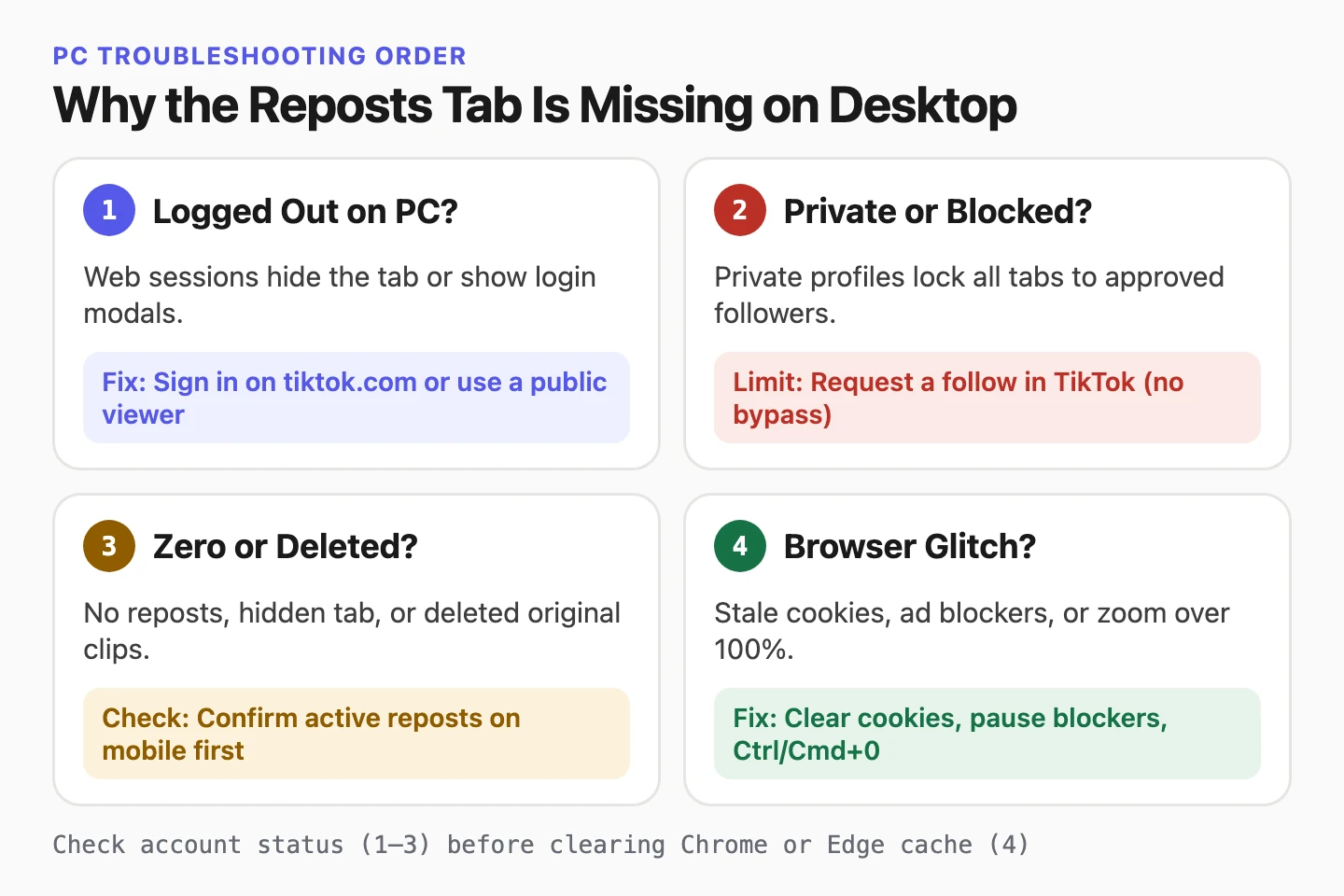
When you run into why can't I see reposts on TikTok PC, separate account restrictions from browser glitches first so you do not waste time troubleshooting a private profile.
Account and Content Causes
- The profile is private. Private accounts restrict every tab, including reposts, strictly to approved followers inside TikTok.
- The user has zero or hidden reposts. If someone never reposted a video, cleared older reshares, or limited repost visibility in settings, the Reposts tab stays hidden or empty.
- Original posts were deleted or restricted. Because a repost links to the original video, deleting the source post, making it private, or applying region or age gates removes it from every Reposts tab.
- Your account was blocked. A creator who blocked you shows an unavailable page or missing tabs when you are signed in.
Desktop Browser Fixes
If a public account shows reposts on mobile yet you see the reposts tab not showing on TikTok desktop, run these four checks:
- Sign in or use a public lookup. Logged-out sessions are the top reason desktop tabs vanish behind login prompts. Sign in on
tiktok.comor run the handle through a browser lookup tool. - Clear browser cache and cookies for
tiktok.com. People asking why won't my reposts load on TikTok PC often have stale cookies or cached scripts in Chrome or Edge. Open site settings in the address bar, clear cookies and site data fortiktok.com, and hard-refresh (Ctrl + Shift + Ron Windows orCmd + Shift + Ron Mac). - Pause ad blockers and script blockers. Privacy extensions and VPNs can block the feed request that loads repost thumbnails while leaving the bio intact. Test the page in an incognito window with extensions off.
- Reset browser zoom to 100% and widen the window. Zoom levels above 100% or narrow split-screen windows on laptops can hide or crowd the profile tab bar. Press
Ctrl + 0(Windows) orCmd + 0(Mac), widen the window, or test a second browser if TikTok is running an interface test.
Privacy, Timestamps, and Private Account Limits
Keep four platform rules in mind whenever you check TikTok reposts on PC:
- Profile views vs. repost alerts. TikTok never sends a notification saying someone opened your Reposts tab, though signed-in profile visits can appear in 30-day Profile View History if both accounts enable it. Viewing without a personal TikTok session removes that trace.
- No exact repost timestamps. Anyone asking how to see when someone reposted something on TikTok should note that public feeds return items in TikTok's native sequence (newest first) without exposing a separate reshare date.
- No repost viewer roster. Tools show what a public account reposted, never a list of individuals who watched a reshared video.
- Private accounts stay locked. For how to check private account reposts on TikTok, only an approved follower inside TikTok can view them. Avoid sites promising private access in exchange for your TikTok password.
For broader desktop research on a public creator, pair repost lookups with TokToolset's TikTok Account Viewer and TikTok Following Viewer, read our TikTok public research workflow guide, or check credit packs on the pricing page.
Frequently Asked Questions
How to see reposts on TikTok PC when the tab is missing?
Confirm the profile is public and has active reposts first. On desktop browsers, sign in on tiktok.com, clear site cookies and browser cache, pause ad blockers, and reset zoom to 100% so the two-arrow Reposts tab appears. If logged-out walls still hide it, enter the public @username in TokToolset's Repost Viewer.
Can you repost on TikTok on desktop or PC?
Yes. While signed in on tiktok.com in a desktop browser, open any public video, click the Share arrow icon beside the player, and select Repost when resharing is enabled for that post. The video then appears under your profile's Reposts tab and can be removed anytime from the same Share menu.
How to see when someone reposted something on TikTok desktop?
TikTok does not expose an exact date or timestamp showing when a user reposted a video on desktop or mobile. Public Reposts tabs load in TikTok's native feed sequence with newer reshares near the top, so you can gauge relative recency while seeing only the original creator's upload date.
Can someone tell if you view their reposts on TikTok PC?
TikTok does not notify creators specifically when someone opens their Reposts tab. However, visiting a profile while signed in can show up in 30-day Profile View History if both users enable that feature. Checking a public profile without connecting a personal TikTok session keeps your account out of visitor logs.
Can you see reposts from a private TikTok account on PC?
No, unless you sign in to TikTok with an account the creator already approved as a follower. TikTok locks posts, likes, and reposts on private accounts strictly to approved followers. External websites cannot bypass private permissions, and TokToolset automatically refunds reserved credits whenever a lookup hits a private profile.
How do you see who reposted your TikTok video on PC?
TikTok does not provide a complete list of every user who reposted your video on desktop. When followers or friends reshare your clip, alerts can appear in your Activity panel and small profile icons appear inside the app, whereas visiting public profiles only shows what each individual user has reposted.
Need a clean desktop view of any public creator's reshared videos without login walls or missing browser tabs? Try the fastest way for how to see reposts on TikTok PC with a free TokToolset account, including 10 welcome credits valid for 30 days, zero TikTok login required, and automatic refunds on private or failed lookups.